Service
Calls - Release a Call
Note that there are changes to the Call Centre screens due to the Call Centre Performance Enhancements rolled out in part of the
Extended Call Centre - Version Compatibility . The functionality that is available to you may differ depending on the Call Centre mode configured and your user rights. For more information related to this, refer to the Call Centre Mode notes.
When work can commence for a call that has been on hold or pending, it can be released. The call will move back to the New status where it can be re-assigned.
 When the call is re-assigned, a new work order should be created.
Ribbon Select Service > Calls

- The Call Listing screen will be displayed.

- The Calls are listed by Site and will display calls for the first Site listed.
- Click on the relevant Site for the calls you wish to view.

 Note that call must be in either the Hold or Pending status to be released back to New.
- Select the Call you wish to work with.
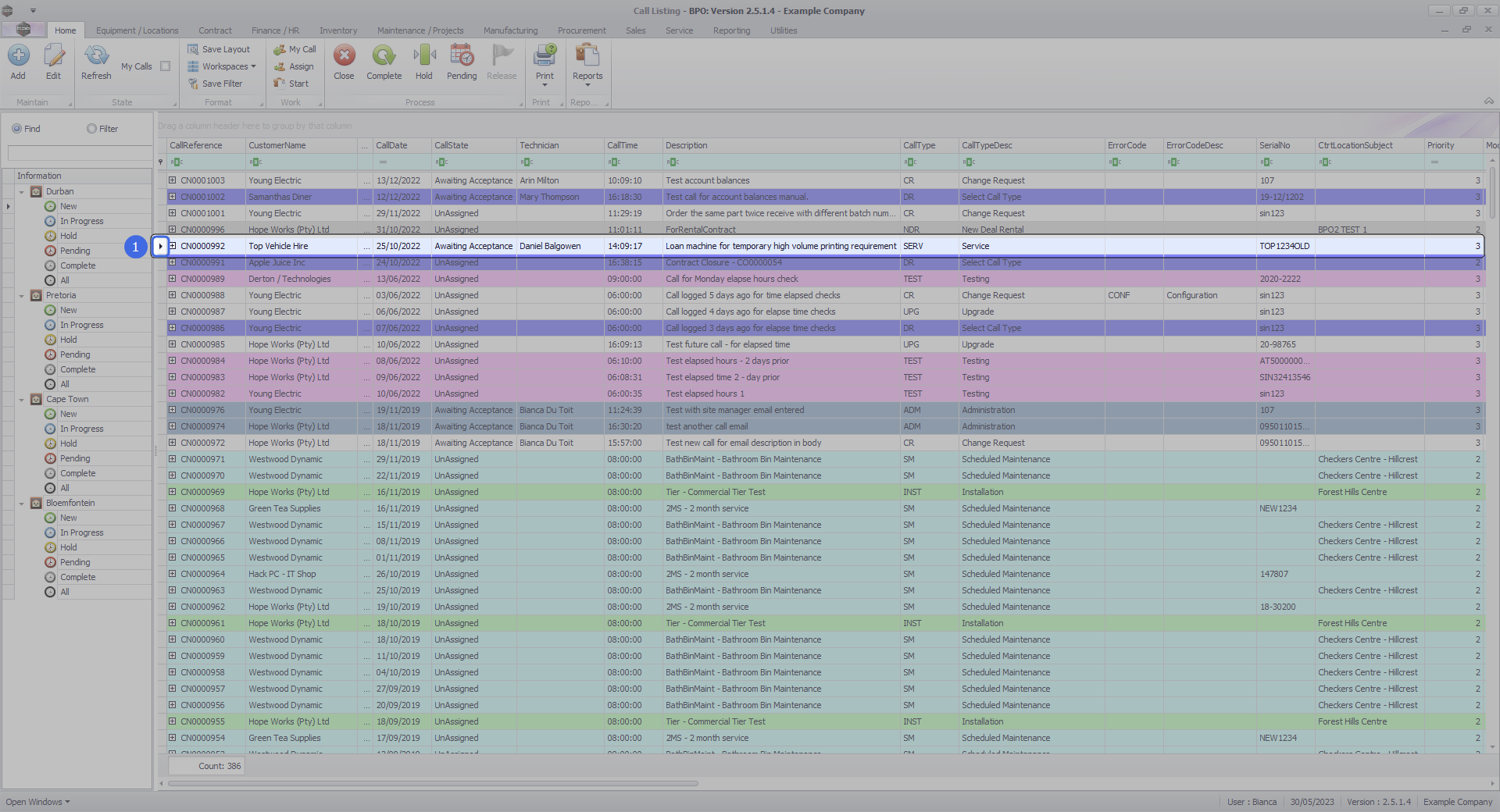
- Click on theRelease button.

- The Call to Release: [call ref. number] screen will be displayed.
- Release Date and Time: This field will display the current date and time.
- Date: Type in or click on the down arrow to use the calendar function to select an alternative date, if required.
- Time: Type in or use the arrow indicators to select an alternative time, if required.
- When you have finished editing the date and time, click on Save.

- You will return to the Call Listing screen where the status is set to New.
- When you receive the Call Processing message to confirm that;
- Call No: [call ref. number] has been released.
- Click on OK.

- You will no longer be able to view the call in the Status you have released it from.
- Change the Status to New, to view the Call and to re-assign.

MNU.122.004