We are currently updating our site; thank you for your patience.
Interface Functionality
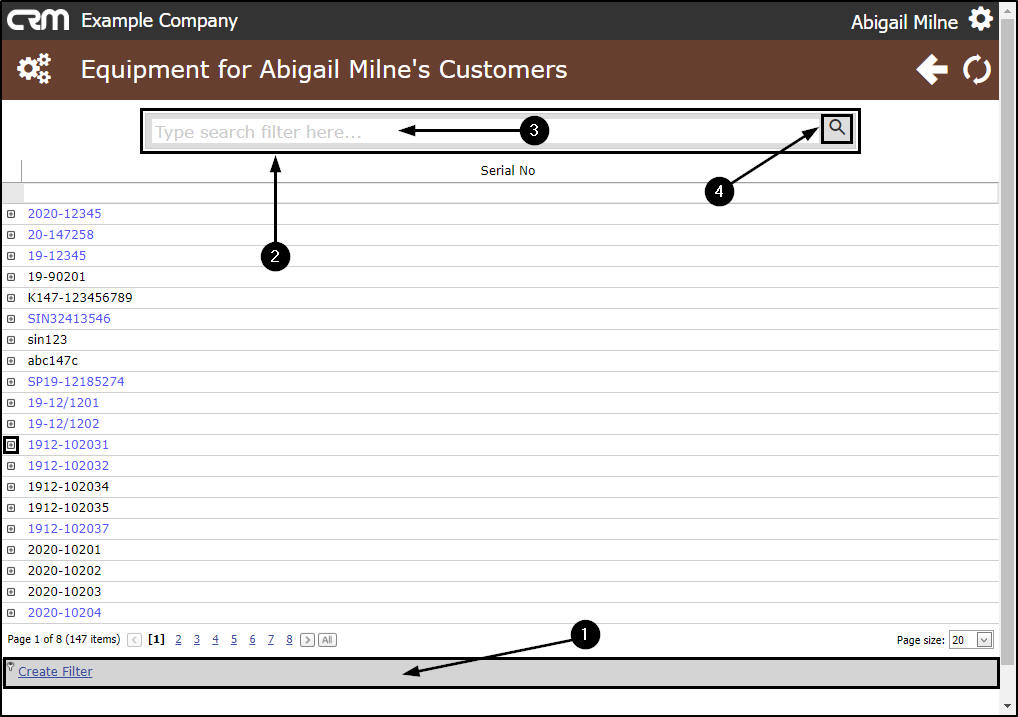
Create Filter and Filter Text Box
In CRM, filters are used to reduce the number of objects visible on the screen at one time. This reduces clutter on your screen and allows you to focus on the required items.
The Create Filter and Filter Builder feature is a tool for creating and editing the advanced filters in CRM. It provides you with options to modify, build, save, and reuse any attributes of the filter.
The Filter Text Box enables you to locate items in the data grid by entering values in this text entry field.
| Ribbon Access: Webpage > http://[servername]:[portno]/BPOCRM/User.aspx |
Select a CRM Listing Page
All of the tiles except "Create Cold Call" will direct you to a listing page in CRM: Recommendations, Warnings, Customers etc. For the purpose of this manual, we will select the Equipment tile.
- In the Home page,
- Click on any tile to direct you to a listing page. In this example, the Equipment tile has been selected.

- The Equipment for[Salesman's Name]Customers page will open.
Create Filter
- Click on Create Filter.

Filter Builder
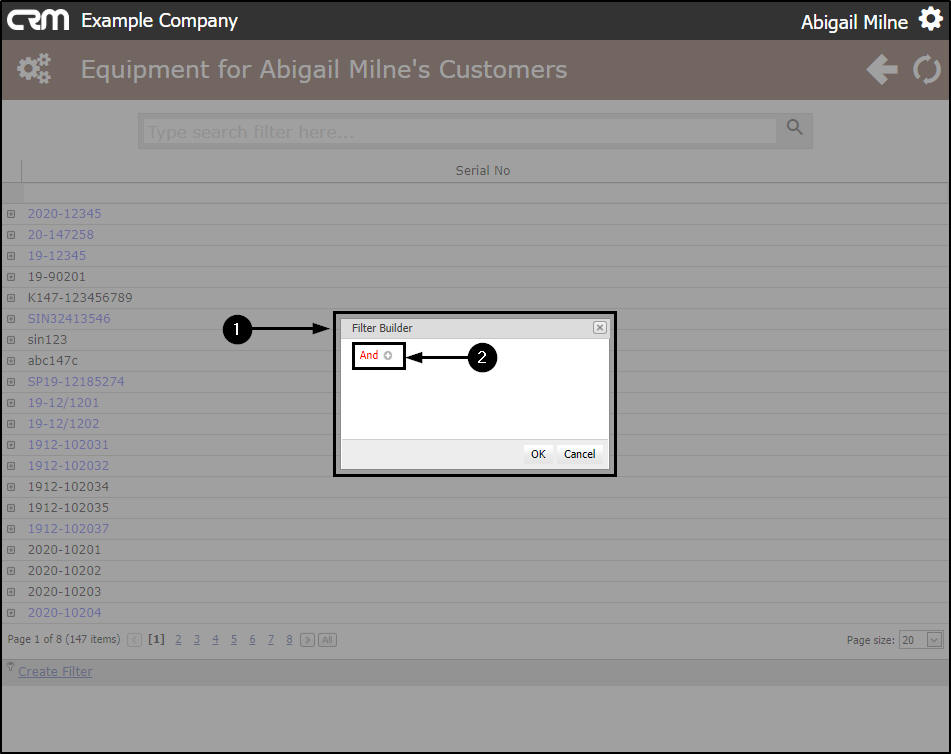
- The Filter Builder screen will pop up.
- Click on And or the plus [+] button to start the filter string.
For more information about this filter functionality refer to The Filter Editor.
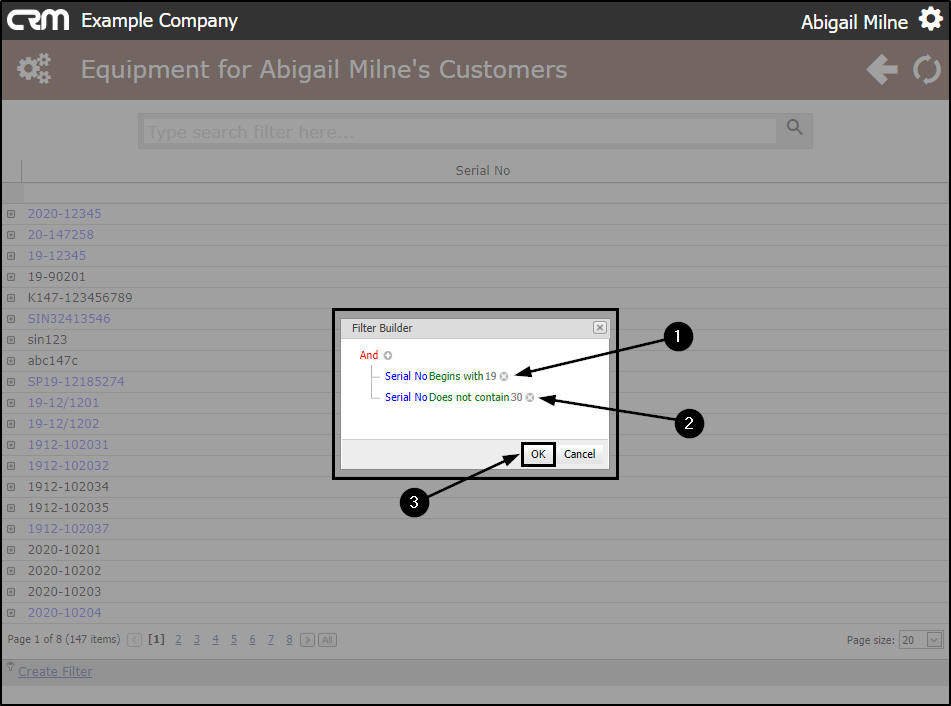
In this example, the Filter Builder has been set to filter for:
- Serial No's that Begin with 19
-
and within that result,
- Serial No's that do not contain30.
-
When you have finished selecting the filter sequence,
- Click on OK.
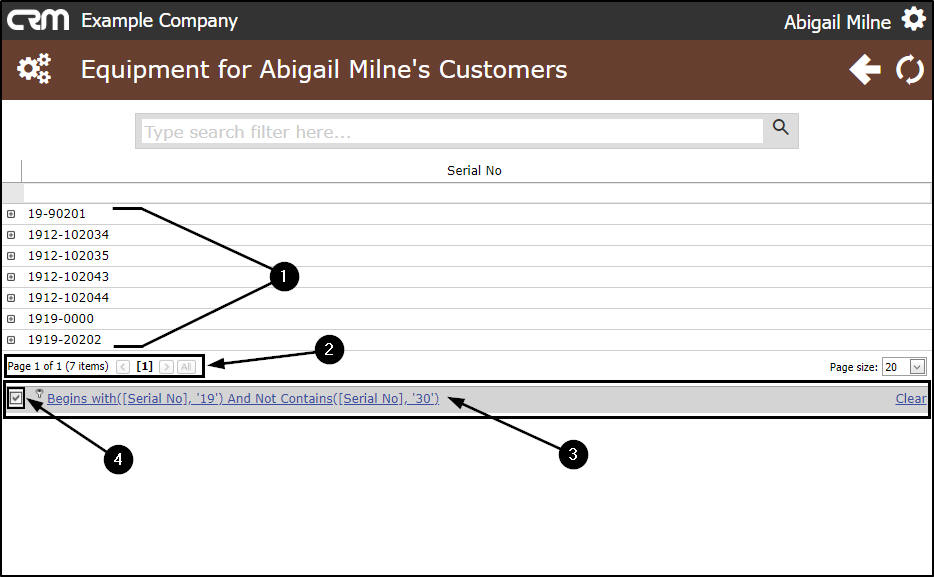
- CRM will apply the filter and list only the applicable serial no's in the page.
- The Page Reference field will inform you of the results of the filter, in this example: [Page 1 of 1 (7 items)].
- The Create Filter row will contain the Filter Builder sequence for reference.
Clear the Filter
(but keep the filter sequence reference)
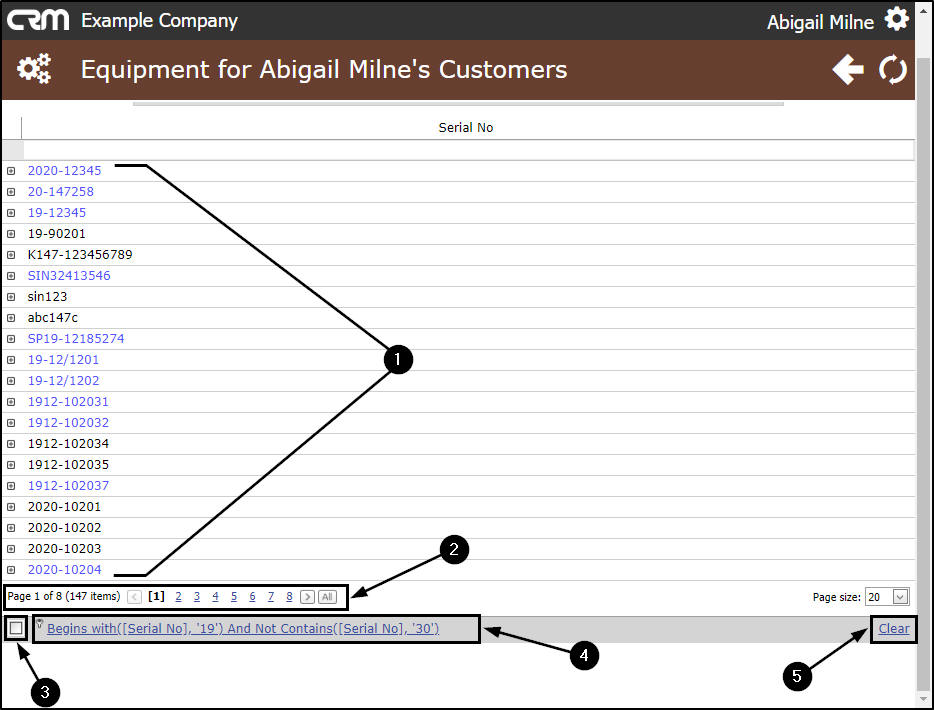
- Un-tick the check box in the Create Filter row.
- The filter check box is now clear.
- The applied filters will be removed from the data grid and you will be able to view the full list of serialised equipment items.
- The Page Reference field reflects the new results, in this example, the data grid is again returning 147 items and there are 8 pages of items to view.
- The Create Filter row still displays the filter sequences and you can select the check box to re-apply the filter options, if desired.
Clear Filter Sequences
- If you wish to remove all filter sequences from the Create Filter row, click on Clear.
- The filter sequences will be cleared from the Filter Row.
The Filter Text Box
- You can also filter for specific words or names and/or numbers by using the Filter Text Box.
- Type the serial number or part of a serial number in this box.
- CRM should start searching as you type but if not, click on the search button.
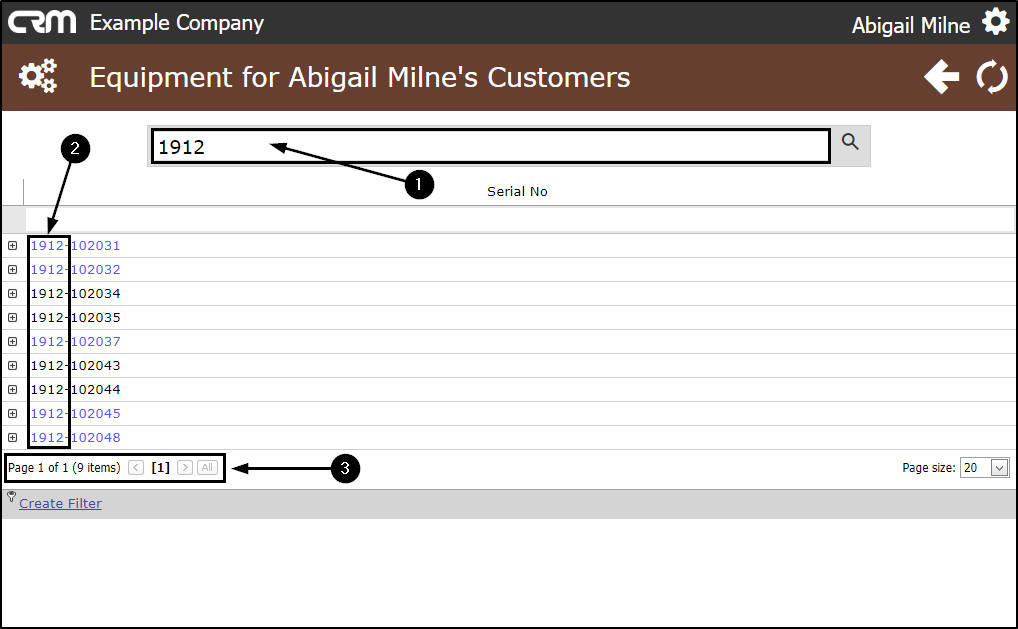
- The typed number will display in the Filter Text Box.
- The data grid will refresh to display only the serial numbers that contain the filter box number sequence.
- The Page Reference field reflects the new results, in this example, the data grid is returning 9 items and there is 1 page of items to view.
Clear the Filter Text Box
- To clear the Filter Box selection:
- Either, click in the field and backspace over the number sequence,
- or highlight the number and press Delete on your keyboard.
- The data grid will refresh to display the full list of serial numbers again.
CRM.004.002